
2.10 Restoring Your Project
Restore from original DOCX files or Pockitle Cue-generated XLSX backups through Excel Restore (Test); general XLSX/PPTX import is not supported.
Use Excel Restore (Test) carefully
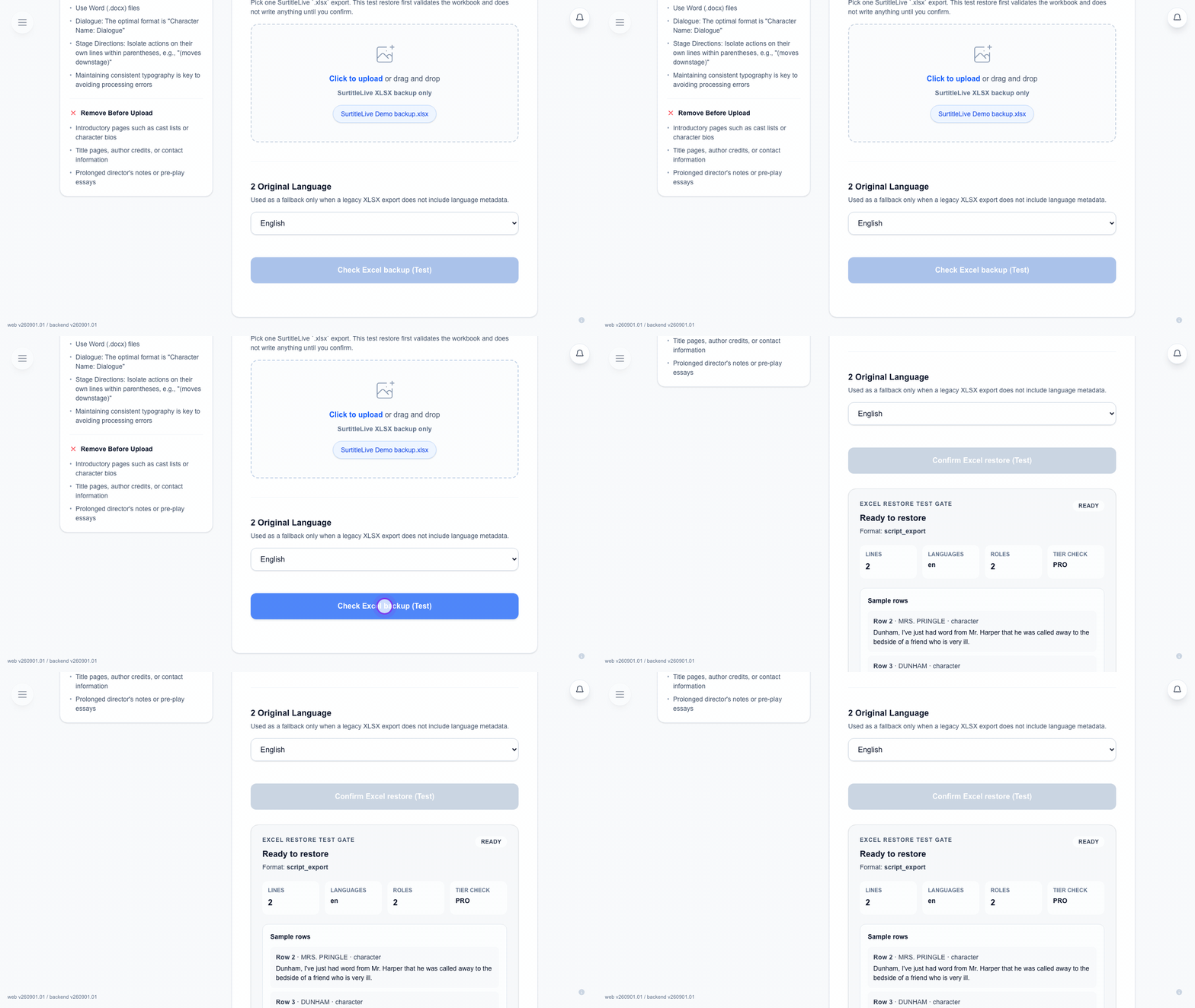
Excel Restore (Test) only works with Pockitle Cue-generated .xlsx backups.
- Open the project upload page.
- Select
Restore from Excel (Test). - Upload the Pockitle Cue XLSX backup.
- Review the summary, warnings, and sample rows.
- Confirm the restore only if the preview looks correct.
- Open the editor and review the restored script before live use.
Tip: Keep the original Word .docx file as the primary source. Excel Restore (Test) is a controlled restore path, not a general spreadsheet importer.
What the restore expects
- Use only XLSX files exported by Pockitle Cue.
- Keep the workbook structure intact.
- Do not rely on old line IDs. Restore creates fresh line IDs.
If you are rebuilding from the source DOCX
- Upload the original .docx file.
- Run analysis again.
- Review the draft in the editor.
- Add back any translation work you still need.
Best practice
- Keep the original DOCX.
- Export a fresh backup before major changes.
- Name backups clearly with a date or milestone.
Important: Confirmed restore replaces the current project script. Review it in the editor before any live workflow.
FAQ
Common questions for this workflow, based on the current Pockitle Cue system.
Why can't I import a general XLSX or PPTX file back into Pockitle Cue?+
General XLSX and PPTX import is not supported. However, Pockitle Cue-generated .xlsx backup files can be tested and restored through the Excel Restore (Test) gate on the project upload page. Only use .xlsx files exported from Pockitle Cue — do not use arbitrary spreadsheets.
What is the safest file to keep for recovery?+
Keep your original .docx source document. That is the best starting point for re-running analysis and rebuilding the project from scratch if needed.
Deployment Workflow
Continue In This Workflow
Script preparation, translation workflow, live deployment, operator control, and runtime troubleshooting.
3.1 Using Simulation Mode
Preview prepared languages, then choose live languages and finalize the script.
4.1 How to Deploy Live Subtitles for a Show
Deploy live surtitles by finalizing your script, confirming plan-specific region behavior, setting operator access, and sharing viewer links.
4.2 How to Manage a Live Deployment
Manage viewer links, front-of-house materials, operator access, live subtitle updates, duration, and deployment retirement.