
2.2 Opening the Script Editor
Open the Pockitle Cue script editor and learn its layout, toolbar, collaboration indicators, language controls, saving behavior, and read-only access.
Open the editor
- For a Word document, finish upload and analysis. For an Excel script, finish
Import from Excel. - On the project page, open Editor & Simulation.
- For a project without a script, use
Start in Editorin the project card menu. Choose the original language and confirm to write from scratch.
Know the main areas
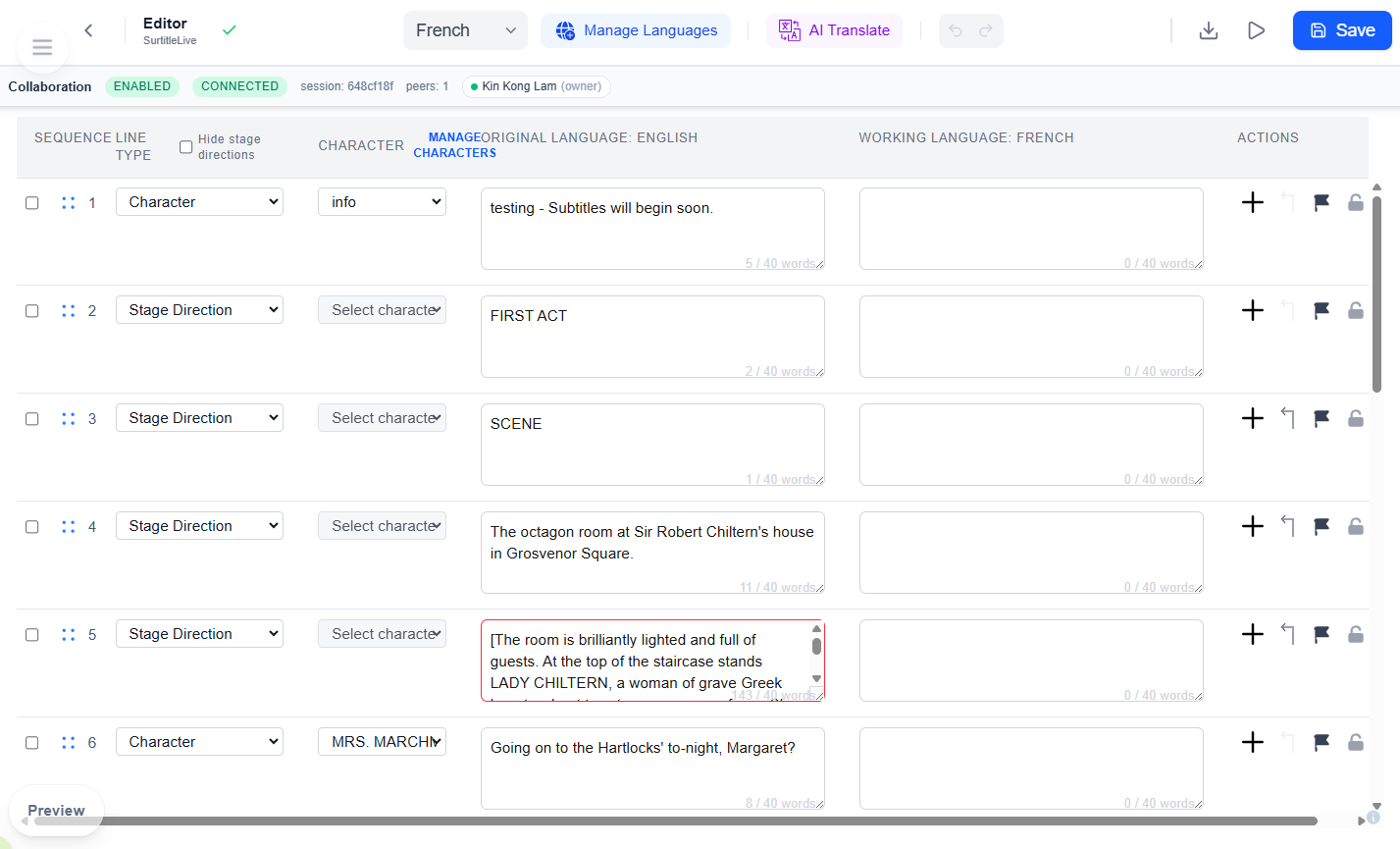
Top toolbar
- Left: the
Back to Projectsarrow button, the Editor label, and the save-status indicator. - Center:
Language,Manage Languages,AI Translate,Undo, andRedo. - Right:
Download file,Open Simulation, andSave. Update Liveonly appears in the top-right area when the project already has an active deployment.- Save in Editor, then submit Update Live from Editor or Deployment Cockpit. During Live or while ASM controls the show, open
Update subtitlesin the unlocked ASM top toolbar and confirmApply updateat a safe moment; submission alone does not change the audience subtitles.
Main table
Each row shows sequence, type, character, source text, working-language text, and row actions.
Right screen panel
The right side is a collapsible preview panel. Use it to step through visible lines without leaving the editor.
Read-only and shared work
- Viewers can open the editor, but edit controls stay disabled.
- File download is not a viewer feature. Export is limited to owner or manager access.
- Click a text cell and wait for its row reservation before typing. Another session’s reservation blocks changes, deletion and merge on that row. Full-script AI translation temporarily makes shared editing read-only; wait for synchronization after it ends. See line editing, approval and discussion for the individual protection controls.
FAQ
Common questions for this workflow, based on the current Pockitle Cue system.
Why can I open the editor but not change anything?+
You are likely in read-only access. Viewers can open the editor, but they cannot edit script content.
How do I get into the editor now?+
After analysis, open Editor & Simulation on the project page or use the editor quick action. To begin without uploading or analyzing a file, use Start in Editor to create a blank script.
Deployment Workflow
Continue In This Workflow
Script preparation, translation workflow, live deployment, operator control, and runtime troubleshooting.
2.3 Editing Lines & Roles
Edit rows, review line history, and refine individual translations with AI.
2.4 Adding & Managing Languages
Prepare up to 20 translated languages, then choose plan-limited live languages at finalization.
2.5 Using AI Translation
Choose the editor working language, confirm the original language, and select the translation mode and method.