
2.1 Editor Quick Start
Use the core editor controls for languages, AI translation, simulation, and export.
✍️ Quick Guide
Main job: Review the draft, add languages, translate if needed, and send the script to Open Simulation
Key controls: Language, Manage Languages, AI Translate, Download, Open Simulation, Save
Editor Quick Start
Use this page to get through the Editor once without guessing where the next control lives.
Opening the Editor
- Finish upload and script analysis first.
- Open
Editor & Simulationfrom the project workflow. - The Editor opens as a table with toolbar controls above it.
Top Toolbar Essentials
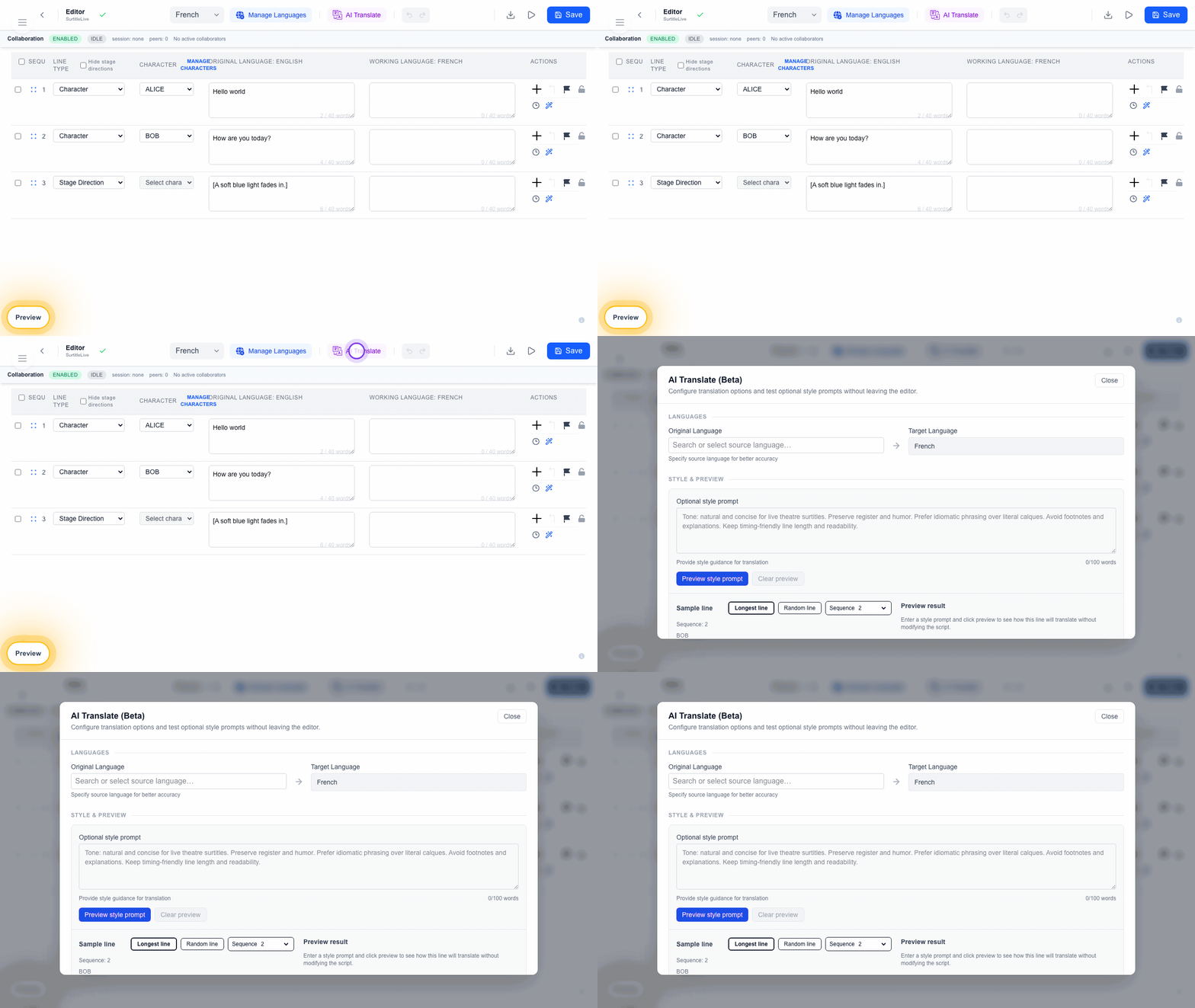
Left Side
Language sits in the top toolbar center-left area and chooses the working language you are editing right now.
Center Area
Manage Languages: center button, used to enable or remove project languages.AI Translate: purple button just to the right ofManage Languages.UndoandRedo: small curved-arrow buttons beside the translation button.
Right Side
Download file: right-side button with a download arrow icon.Open Simulation: right-side button with a right-pointing play triangle icon.Save: far-right button used to force-save pending edits.
Adding Languages
- In the top toolbar center area, click
Manage Languages. - Add the project language you need.
- Then use the
Languagedropdown just left of it to switch into that language for editing.
Editing Text
- Click any cell in the table to edit
- Type your translation or changes
- Click outside the cell to finish editing
Note: Changes are saved automatically. Save is the far-right top-toolbar button and saves all pending changes immediately.
AI Translation
- In the top toolbar center area, click the purple
AI Translatebutton. - Select the target with the editor toolbar
Languagecontrol, then confirmOriginal Languagein the translation dialog. - Optionally preview a style prompt.
- Click
Translatein the translation dialog to open the confirmation. - Review the estimate and warnings, then click
Confirm and startin the confirmation dialog.
Next Steps
- Open
Open Simulationfrom the top toolbar right area. - Preview the project languages and check their completion.
- Choose the live languages only when you click
Looks Good! Finalize and Push.
FAQ
Common questions for this workflow, based on the current Pockitle Cue system.
Will my edits save automatically?+
Yes. The editor auto-saves while you work, and the Save button lets you flush pending changes immediately.
Can I do serious editing on a phone?+
You can open the editor on mobile, but a laptop or desktop is strongly recommended for heavy editing, translation, and live-show prep.
Deployment Workflow
Continue In This Workflow
Script preparation, translation workflow, live deployment, operator control, and runtime troubleshooting.
4.5 Operator Quick Reference (ASM)
Use the operator cockpit to go live, advance cues, and handle show-time controls.
1.3 Preparing Your Script for Analysis
Clean the DOCX, use Check script for a free readiness estimate, and review the editable cue draft before translation or deployment.
1.4 What to Do If Script Analysis Gets Stuck
Track analysis progress, recover from failed or stuck script analysis, and handle upload guidance safely.