
4.1 How to Deploy Live Subtitles for a Show
Deploy live surtitles by finalizing your script, confirming plan-specific region behavior, setting operator access, and sharing viewer links.
Finish Simulation first. Deployment starts after Looks Good! Finalize and Push.
Open the Go Live page
Use Looks Good! Finalize and Push at the bottom-right of Simulation.
- Review the script in Simulation.
- Click
Looks Good! Finalize and Push. - In
Choose live languages, keep the included source language and select the translations within your plan limit. - Confirm
Finalize and Pushto open theGo Liveform.
Fill the Go Live form
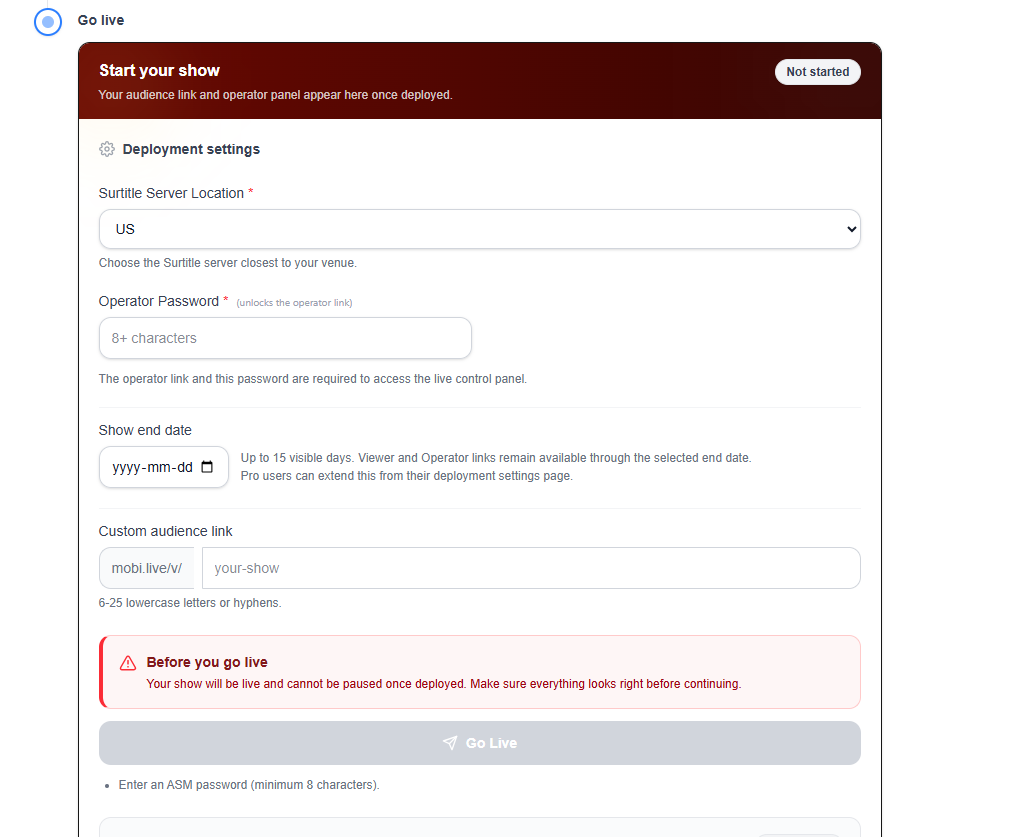
- Subtitle server location: Lite uses system-selected US Central. Pro and Pro+ can choose from the allowed regions.
- Operator Password: required. This unlocks the ASM operator link.
- Show end date: appears when your plan supports a custom end date. Lite keeps the default 7-day visible window.
- Custom audience link: optional when the plan allows it.
Start the deployment
After the form is ready, click Go Live at the bottom of the form. It is the main blue submit button with a paper-plane icon.
- Wait for the deployment request to finish.
- Open the next page only after the deployment reports success.
Check before the audience arrives: deploy early enough to test the viewer link, ASM link, QR flow, and any projection setup.
Open Deployment Cockpit after success
After deployment, move to Deployment Cockpit.
- Check
Viewer (audience)andASM Console (operator). - Copy or open the links from
Audience & Operator links. - Use
Performance Link IDif you need to confirm the deployed short-link set.
For post-deploy tasks, continue with How to Manage a Live Deployment.
Deployment Limits
- Free: no production live deployment. Eligible verified workspace owners and managers can run a limited preview with the first 30 cues for 60 minutes, up to twice per day.
- Lite: 2 active deployments, fixed visible window.
- Pro and Pro+: more deployment capacity and more deployment options, as shown in the UI.
Plan Viewer links and printed QR codes
Pro and Pro+ can reserve a fixed Viewer URL and QR code before deployment, at project creation, in gear settings or on Go Live. Free and Lite normally receive a random URL only when deploying. Extension and Update Live keep the current address; verify it again before printing for a new deployment. See Viewer link and QR preparation for details.
FAQ
Common questions for this workflow, based on the current Pockitle Cue system.
How do I deploy live subtitles in Pockitle Cue?+
Check the script in Simulation first, finalize it, open the Go Live flow, confirm the plan-specific region and duration, set the operator password, then deploy and share the Viewer Link or QR code.
Why is Deploy unavailable for me?+
The script must be finalized and your role must allow deployment. Production delivery needs an eligible paid Access Pass. Verified eligible Free owners and managers can use the limited preview; check its remaining allowance.
Deployment Workflow
Continue In This Workflow
Script preparation, translation workflow, live deployment, operator control, and runtime troubleshooting.
4.2 How to Manage a Live Deployment
Manage viewer links, front-of-house materials, operator access, live subtitle updates, duration, and deployment retirement.
4.3 How to Update Live Subtitles After Deployment
Submit saved Editor subtitles to the active deployment. During Live, or while an ASM console controls the show, submission waits for the operator to apply it in ASM.
4.4 Using the Operator Cockpit
Run live theatre subtitle cues from the Pockitle Cue Operator Cockpit, manage Intermission and blackout states, and control what audiences see.