
4.4 Using the Operator Cockpit
Run live theatre subtitle cues from the Pockitle Cue Operator Cockpit, manage Intermission and blackout states, and control what audiences see.
Open the ASM link
Use the operator link from Deployment Cockpit, not the public viewer link.
- Open
Audience & Operator linksin Deployment Cockpit. - Open
ASM Console (operator). - On
ASM Operator Login, enter the operator password. - Click
Unlock ASM.
Read the live screen
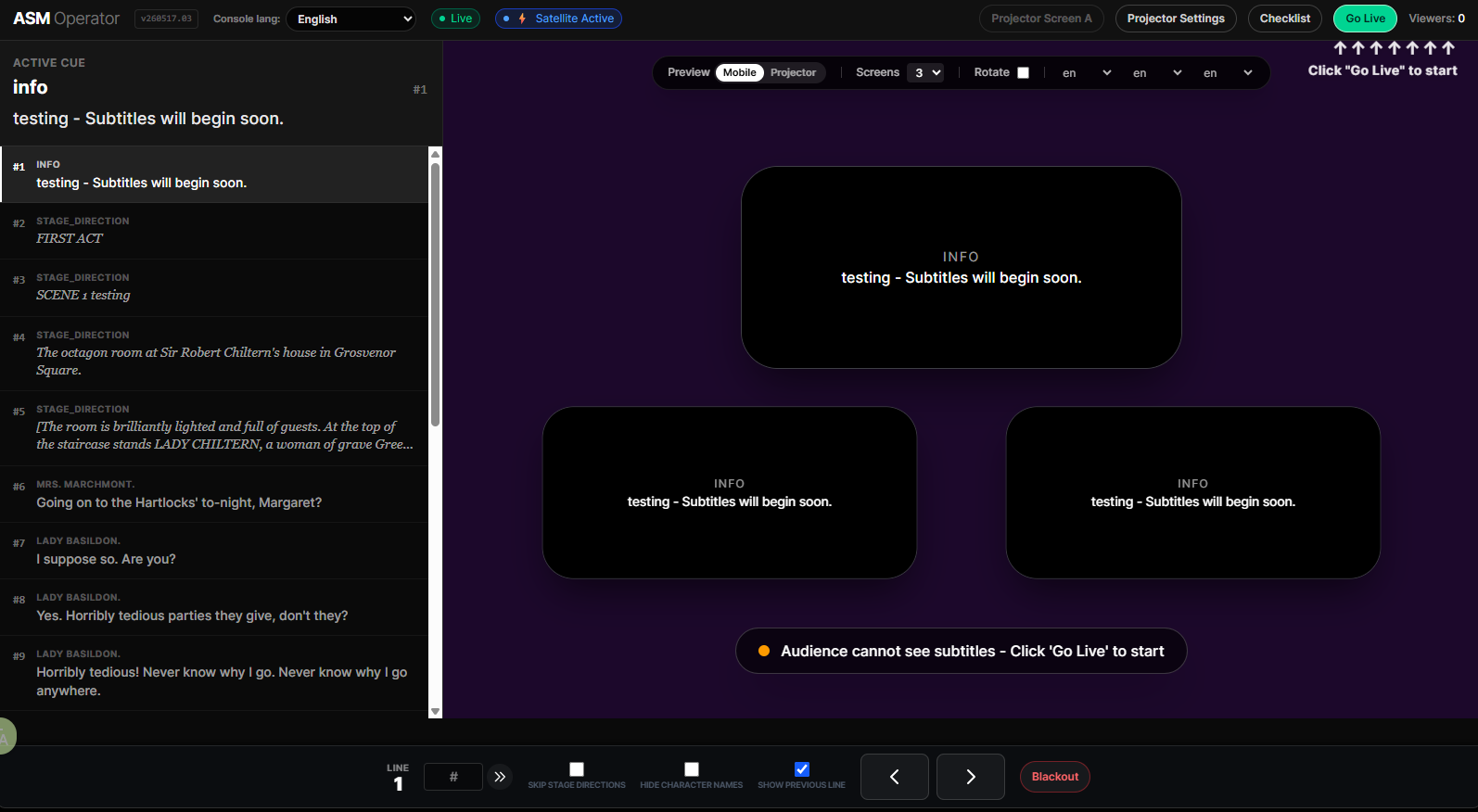
- The header shows
ASM Operatorand the live state. - The top bar shows the current viewer count as
Viewers:. - The center area shows the active cue preview.
- The lower control bar shows
Lineand the live cue controls.
Use the live controls
When ready, select Go Live. Use Next to advance and confirm the cue on each output you plan to use. At the end, select End Show. Ending the performance does not delete the deployment or its links.
PreviousandNextsit in the lower control bar and move one cue at a time.- The
#field in the lower control bar jumps to a line number. Blackoutin the lower left area hides the output until you resume.Skip Stage DirectionsandHide Character Namesare checkbox controls in the lower center area.- Use
Go Livein the upper-right control area when the audience should start receiving subtitles.
Use Intermission for a planned break
- During a live show, click
Intermissionin the header to start a 20-minute countdown. - Use
+5 minto extend the break as many times as the performance needs. - Click
End intermissionwhen the show resumes. Normal 30-minute ASM absence protection then starts again.
Projection and boundary notes
- Projector controls live in the same ASM surface through
Projector Settingsand the projector screen links such asProjector Screen A. - Save in Editor, then submit Update Live from Editor or Deployment Cockpit. During Live or while ASM controls the show, open
Update subtitlesin the unlocked ASM top toolbar and confirmApply updateat a safe moment; submission alone does not change the audience subtitles. - For saved text changes, use Update Live Subtitles.
- Use one primary operator during the show. Test any backup-device handoff before the audience enters.
FAQ
Common questions for this workflow, based on the current Pockitle Cue system.
What login do I use for the operator cockpit?+
Open the Operator Link and unlock it with the operator password configured during deployment.
How does ASM take part in subtitle updates?+
Save in Editor, then submit Update Live from Editor or Deployment Cockpit. During Live or while ASM controls the show, open Update subtitles in the unlocked ASM top toolbar and confirm Apply update at a safe moment; submission alone does not change the audience subtitles.
Deployment Workflow
Continue In This Workflow
Script preparation, translation workflow, live deployment, operator control, and runtime troubleshooting.
5.1 Projection and Mobile: What Each Output Does
Understand how room-visible projection and audience-phone subtitles differ, and why many shows use both from the same live cue state.
5.2 Using Projector Settings
Configure the preset, prepare projector subtitles, save, and return to ASM.
5.3 Preparing Projection Mode for Showtime
Prepare Projection Mode before performance, test already-open local projection continuity, and understand what this does not cover.