
5.4 How Audiences Join with a Viewer Link or QR Code
Share Pockitle Cue Viewer links or QR codes, explain how audiences join on their phones, and prepare a clear fallback for live surtitles access.
Use for: Audience phones that join through a browser.
Important boundary: This is separate from Projection Mode and still needs normal cloud connectivity.
Share the audience link
Use the audience link from Deployment Cockpit.
- Open
Audience & Operator linksin Deployment Cockpit. - Use
Viewer (audience)in that card. - Copy the link, open it, or use the QR code for front-of-house materials.
Print the FOH pack
For printed lobby or programme material, use Front-of-House Materials in Deployment Cockpit instead of manually copying screenshots.
Print FOH Packproduces an audience QR poster, mobile viewer instructions, front-of-house phone checks, listing copy, and projector handoff notes.- Venue name, show date, listing copy, and projector notes are optional and stay in this browser for the current deployment.
- Verify or reprint the pack on show day if the viewer access window has changed or expired.
- The pack is a handoff aid. It does not prove every phone received every cue and does not replace a physical pre-show check.
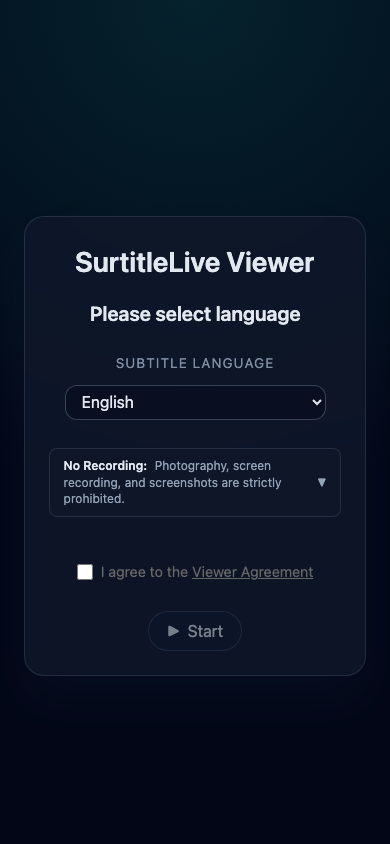
What the audience sees
- The viewer opens in a normal mobile browser.
- The audience chooses an enabled language.
- The audience accepts the
Viewer Agreement. - The audience presses
Startto enter the live viewer.
Browser fullscreen and toolbar checks
Fullscreen and browser-toolbar behavior differs by device and browser. Test the exact phones expected at the venue before doors open.
- iPhone / iOS: recommend Safari. In landscape, Safari is the expected browser for the cleanest audience Viewer experience.
- If the Safari toolbar still takes space, tap the page menu (
aA/Page Menu) and useHide Toolbarif it is available. A small vertical scroll in the Viewer can also help Safari collapse its browser chrome. - iOS Chrome / iOS Firefox: do not use them as the fullscreen path for this workflow, and do not expect the same Safari toolbar controls.
- Android: recommend Chrome. If the Viewer shows a fullscreen button, tap it to enter fullscreen.
- If a device behaves differently, use the orientation, font size, and brightness that were tested successfully on that phone.
Front-of-house tips
- Put the QR code where audience members can scan it before the show starts.
- Tell the audience the link opens in a browser. No app install is required.
- Tell users to keep the phone on silent and lower the screen brightness.
- If a viewer disconnects, refreshing the browser is the first check.
- If the venue internet fails, phones will not keep receiving subtitles just because projection is still running.
Projection is separate
Do not treat the audience phone view as the main projector surface.
- Audience phones use the browser viewer and stay cloud-delivered.
- Room-visible output should use Projection Mode.
Plan Viewer links and printed QR codes
- Pro and Pro+ can reserve a fixed project Viewer URL and QR code before deployment. Set the address when creating the project, in project settings (gear), or on Go Live. A reserved address does not start a performance; test the active deployment before admitting the audience.
- Free and Lite receive a random Viewer URL when a new deployment is created. Before deployment, there is normally no URL or QR code to print. The current deployment address is read-only; use the address shown in Deployment Cockpit for audience materials.
- Extending the current deployment and Update Live keep its Viewer URL and QR code. For a later new deployment, check the current address again before reusing posters. An unused fixed reservation retained after a downgrade can be used for one successful deployment; subsequent deployments follow the current plan.
- QR codes use the saved address. On Go Live, use
Save URLafter changing an editable address; a typed but unsaved address is not the printed QR target. Copy the issued full URL rather than changing its host or path.
FAQ
Common questions for this workflow, based on the current Pockitle Cue system.
How do audience members join the show on their phones?+
Open the Viewer Link or scan the QR code, choose a language, accept the Viewer Agreement, and press Start.
What do viewers see first when they open the link?+
They see the viewer entry screen, choose a language, accept the Viewer Agreement, and press Start.
If projection is still working, will phones still work too?+
Not necessarily. Audience phones still depend on normal cloud delivery. Projection continuity does not mean mobile viewers will keep receiving subtitles when venue internet fails.
Can I print the Viewer QR code before deployment?+
Pro and Pro+ can reserve a fixed project URL and QR code before deployment. Free and Lite normally get a random URL only when deploying. An unused reservation retained after a downgrade can cover one successful deployment. Extension and Update Live preserve the active address; check the current deployment URL before reusing printed materials for a new deployment.
Viewer Workflow
Continue In This Workflow
Audience entry, QR-code access, viewer agreement, and audience-facing terminology for live shows.